Today wraps up my weeklong series on Google Reader, the fast, easy-to-use RSS feed viewer/manager. And I think I've saved the best for last: the boring-sounding but incredibly useful Send to function.
With just a couple clicks, you can route any item in any feed to any number of cool destinations. For example, you can "send" an to a PDF file for offline reading, local archiving, sharing with friends, etc.
 You can also send items to Digg, Facebook, MySpace, Twitter, and various other social networks. There's even a Blogger option for easily turning a feed item into a blog post. And my favorite? Instapaper, which you may recall from a post a couple weeks back.
So, how do you get at all these goodies? Simple:
1. Head to Google Reader and click Settings, Reader settings.
2. Click the Send To tab.
3. Click to place a checkmark next to any of the services you want to add to Google Reader's Send to menu. (The aforementioned Save as PDF option is enabled by default.) Note also the option to create a custom link if you want to include a service that's not already there.
With just a couple clicks, you can route any item in any feed to any number of cool destinations. For example, you can "send" an to a PDF file for offline reading, local archiving, sharing with friends, etc.
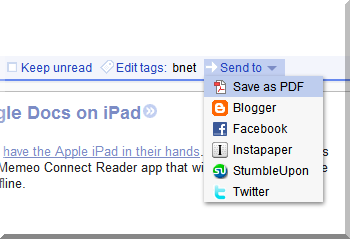 You can also send items to Digg, Facebook, MySpace, Twitter, and various other social networks. There's even a Blogger option for easily turning a feed item into a blog post. And my favorite? Instapaper, which you may recall from a post a couple weeks back.
 So, how do you get at all these goodies? Simple:
1. Head to Google Reader and click Settings, Reader settings.
2. Click the Send To tab.
3. Click to place a checkmark next to any of the services you want to add to Google Reader's Send to menu. (The aforementioned Save as PDF option is enabled by default.) Note also the option to create a custom link if you want to include a service that's not already there.


